If you're looking for a way to record a Slack meeting, here's the truth upfront:
Slack's native option for Huddles is AI Notes + transcription, not a recording file.
What Slack does provide is the ability to record short audio, video, and screen clips inside channels and direct messages.
Short answer: Slack lets you record Clips (short audio/video/screen updates) but only provides AI Notes and transcription for Huddles on paid plans. If you need a full meeting recording file, you'll need a dedicated recorder and participant consent.
Looking for adjacent guides? See how to record Discord calls, how to record Webex meetings, or browse the meeting recording guides hub.
This guide explains exactly what Slack supports today, how to use it correctly, and when you'll need a more robust solution for full meeting documentation.
Quick Summary
- Native Clips: Slack lets you record short (up to 5-minute) audio/video clips for async updates.
- Huddles: Slack offers AI Notes + transcription on paid plans, not a downloadable recording file.
- Transcripts: Native transcripts are manual and tied to each clip or AI Notes canvas.
- When you need more: Use a dedicated recorder to capture full Huddles with consent.
Method 1: Native Clips (Audio/Video)
In Slack, "recording" usually refers to creating a Clip. These are short media messages designed for async communication, not for archiving hour-long strategy sessions.
We tested this on macOS Sonoma and Windows 11 using the Slack desktop app. The camera/microphone icons live in the message composer for channels and DMs, and Clips are available to any member of that conversation on all plans (including guests).
How to Record Audio in Slack
- Open a channel or direct message.
- Click the microphone icon next to the message input.
- Record your message (up to 5 minutes).
- Click Stop (check mark) and send.
Required settings: allow microphone access for Slack and ensure your device input is selected correctly in Slack audio settings.
How to Record Video or Screen
- Open a channel or DM.
- Click the camera icon.
- Choose Camera recording or Screen recording.
- Record your clip, stop, and send.
Required settings: grant camera access, then pick the window or screen you want to share when recording.
About Native Transcripts
Slack can generate transcripts for these clips, but it's not automatic. You must manually click "Generate transcript" on each file. These transcripts are tied to the file, not a meeting timeline.
For Huddles, Slack offers AI Notes and transcription on paid plans. Notes live in a canvas in the huddle thread, transcripts are embedded in that canvas (not searchable), and AI Notes are not available in huddles with external guests. If you don't see AI Notes, an owner or admin may have restricted access.
Why Native Solutions Fall Short
While Clips are great for quick updates, they fail as a meeting record:
- No Huddle Recording File: Huddles don't produce a downloadable recording file; the native option is AI Notes + transcription.
- 5-Minute Limit: Clips cut off after 5 minutes.
- No Speaker ID: Clips are single-user uploads, not multi-speaker conversations.
- Retention Policy: Clip retention follows your workspace's message retention settings, not a meeting archive.
Concrete example: a 45-minute sprint planning huddle would require nine separate clips, and you still wouldn't get a single searchable timeline.
Trade-off: Clips are fast and lightweight, but you lose the continuity, speaker context, and long-form capture needed for decision records.
Method 2: Professional Recording (Full Huddles)
To record a live Slack Huddle, you need an external recorder. Fonnos runs alongside Slack, capturing both system audio (what your team says) and your mic (what you say), regardless of Slack's limitations. You can start a session from Fonnos Record.
How to Record with Fonnos
Follow these steps to capture your next Slack Huddle:
- Initiate Slack call.
In Slack, select a channel or a person and initiate a call by clicking on the huddle button.
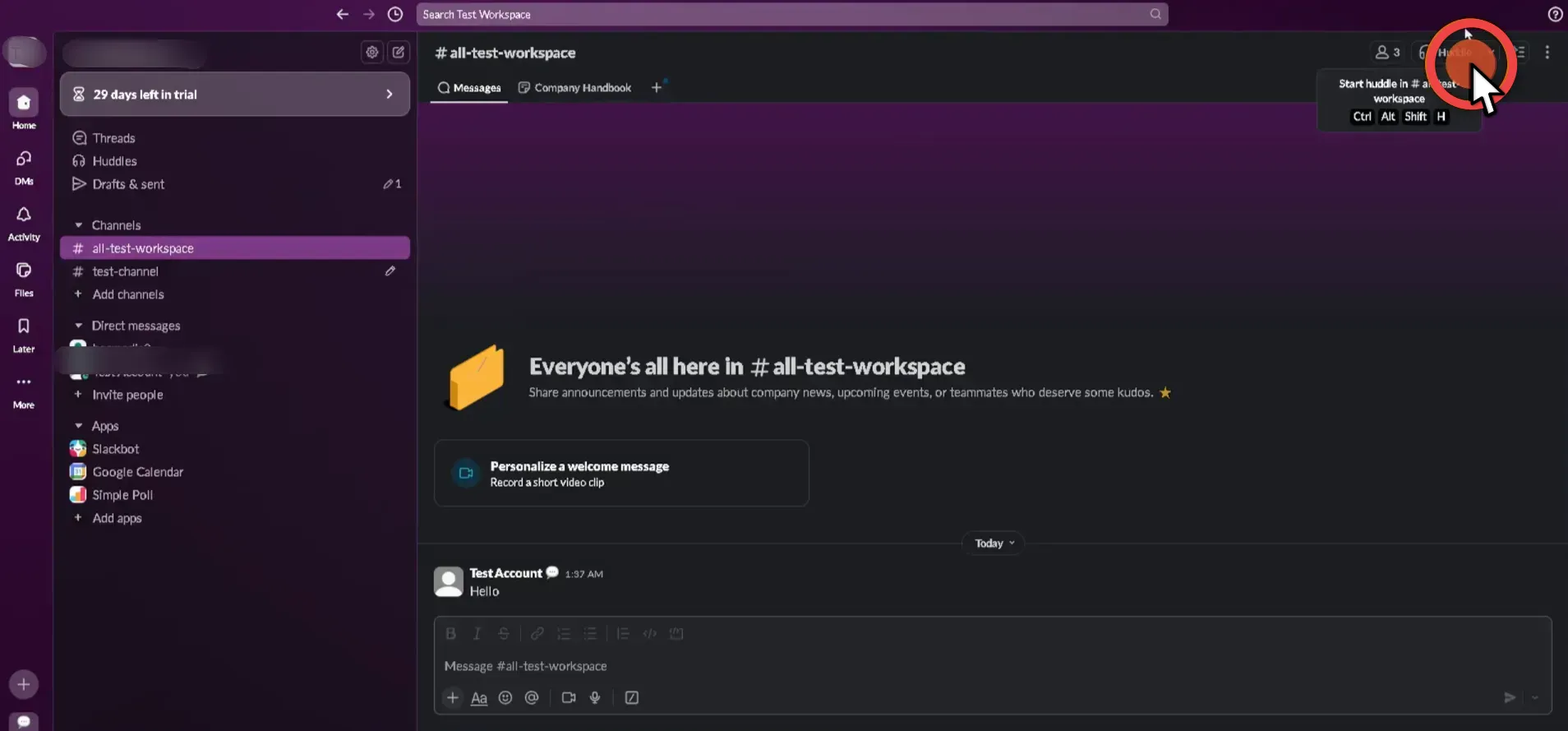
Start your huddle from the channel or DM where the meeting happens.
- Proceed with the call.
Now that the call has started, continue with your discussion as you normally would.
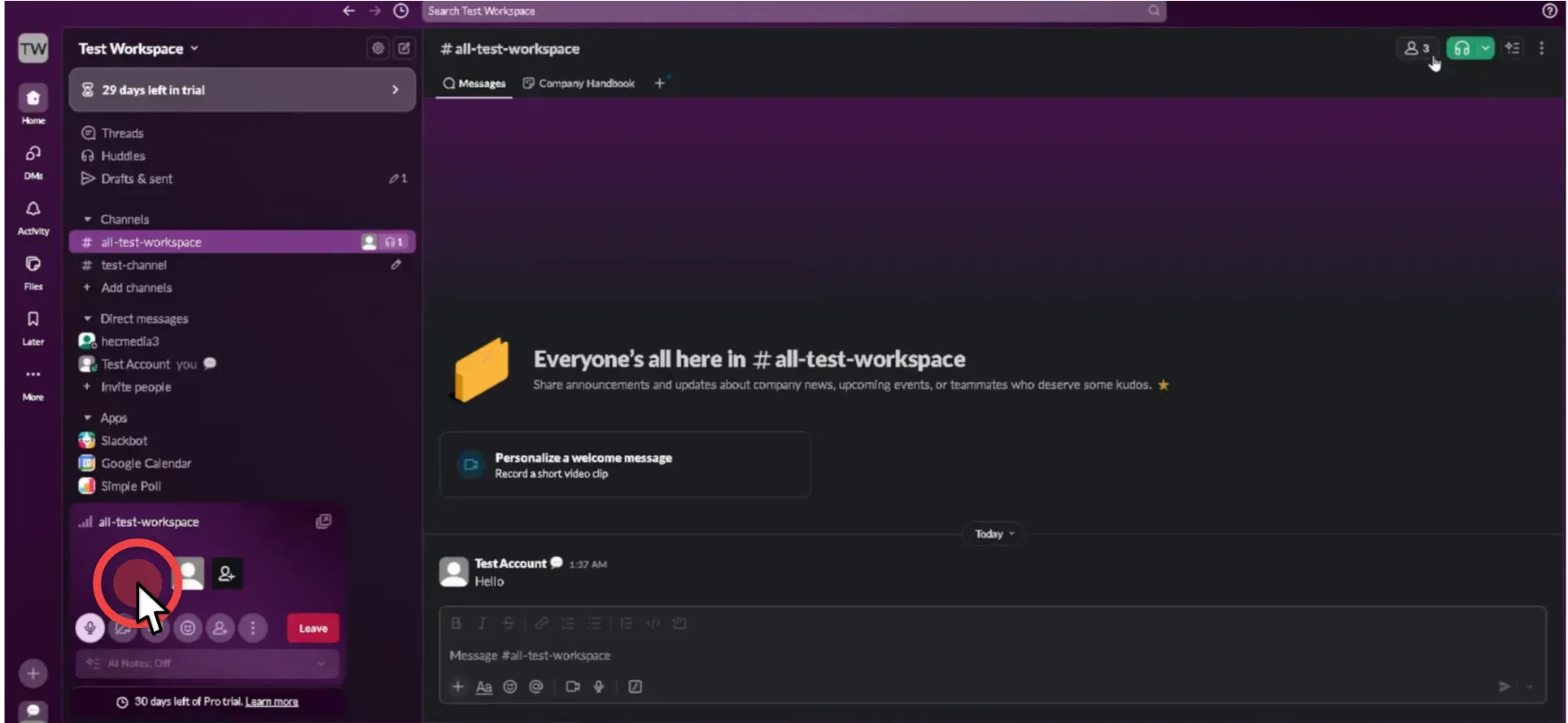
Keep the huddle running while you set up recording.
- Start a recording session in Fonnos.
Go to fonnos.com and start a new recording session by selecting 'Record new meeting'.
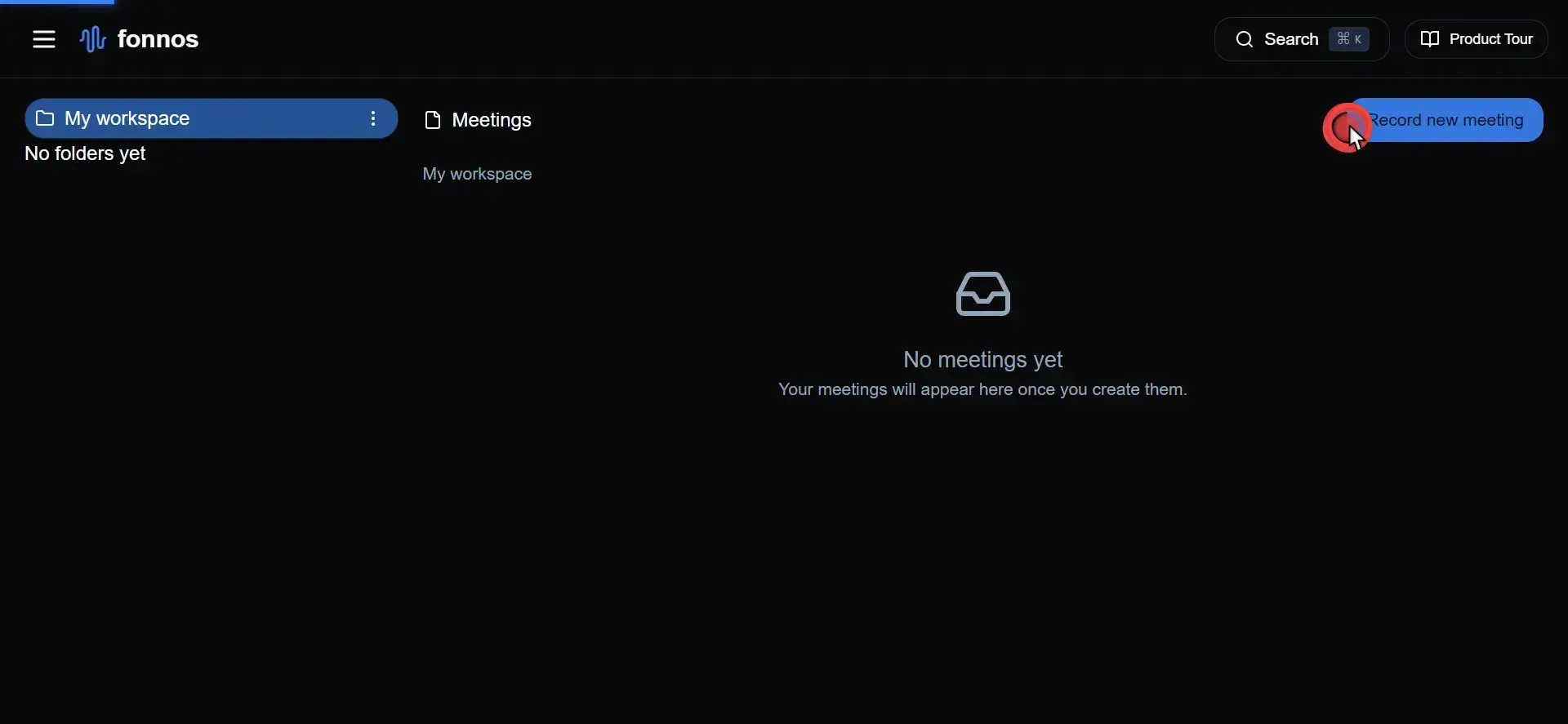
Start a fresh recording session before you share your screen.
- Activate screen and audio recording.
Initiate the recording by selecting 'Start recording', making sure to capture both your screen and system audio.
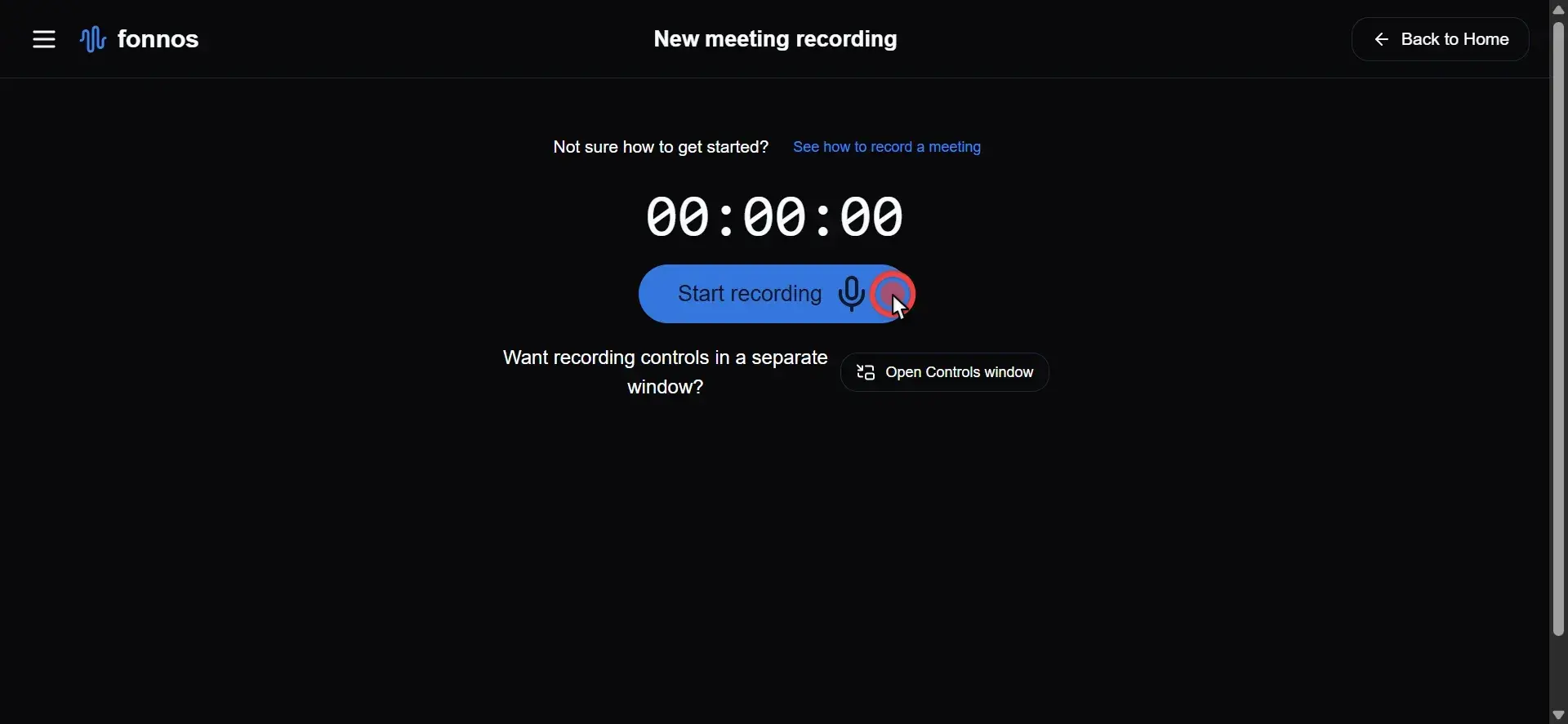
Confirm system audio is enabled so everyone is captured.
- Share entire screen and system audio.
It's crucial to share your entire screen and enable the 'Also share system audio' option so Fonnos can capture the voice of your teammates.
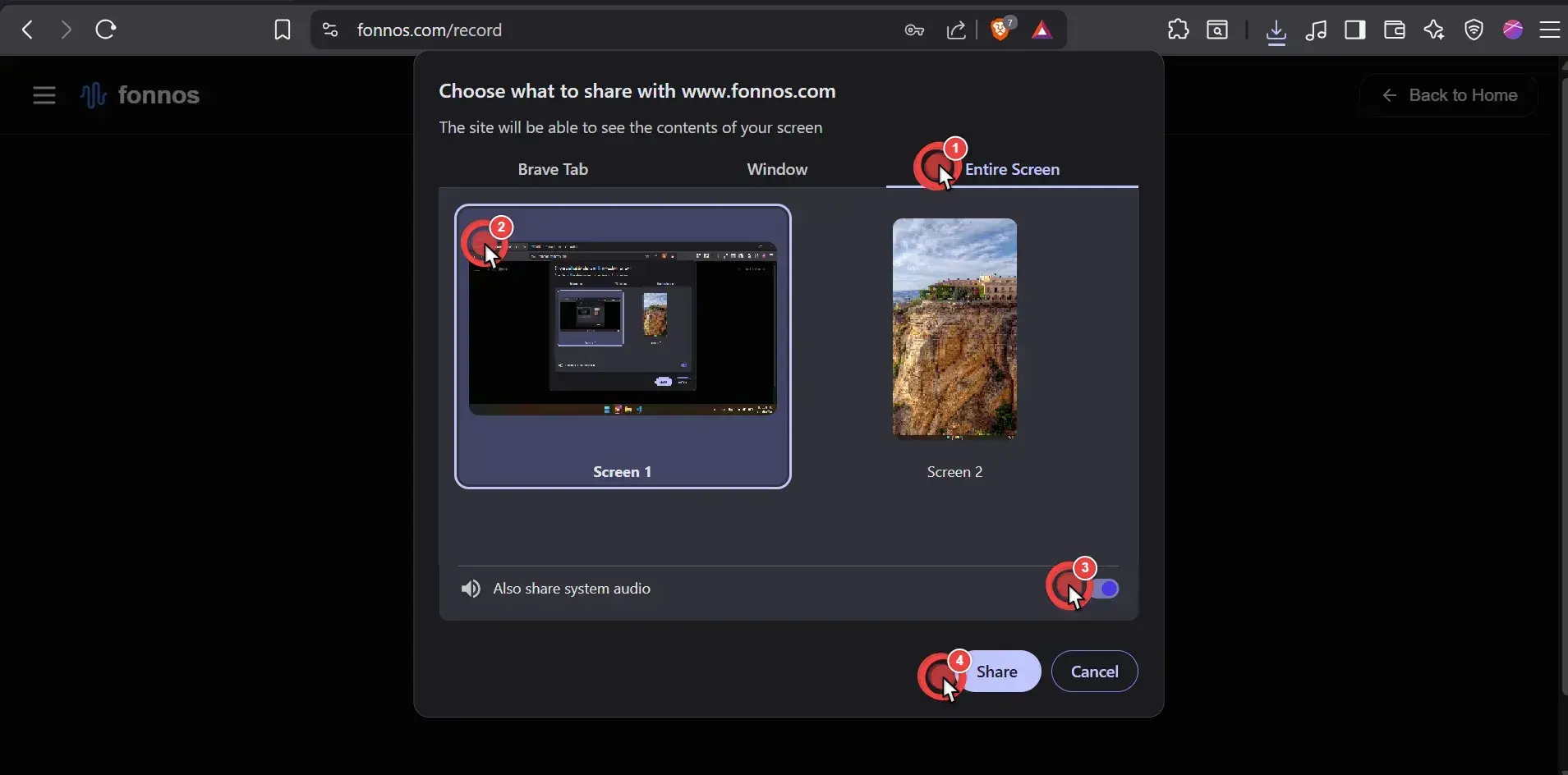
Screen + system audio is required for complete capture.
- Monitor Fonnos recording.
Once you've set up screen and audio sharing, Fonnos will begin recording the meeting automatically.
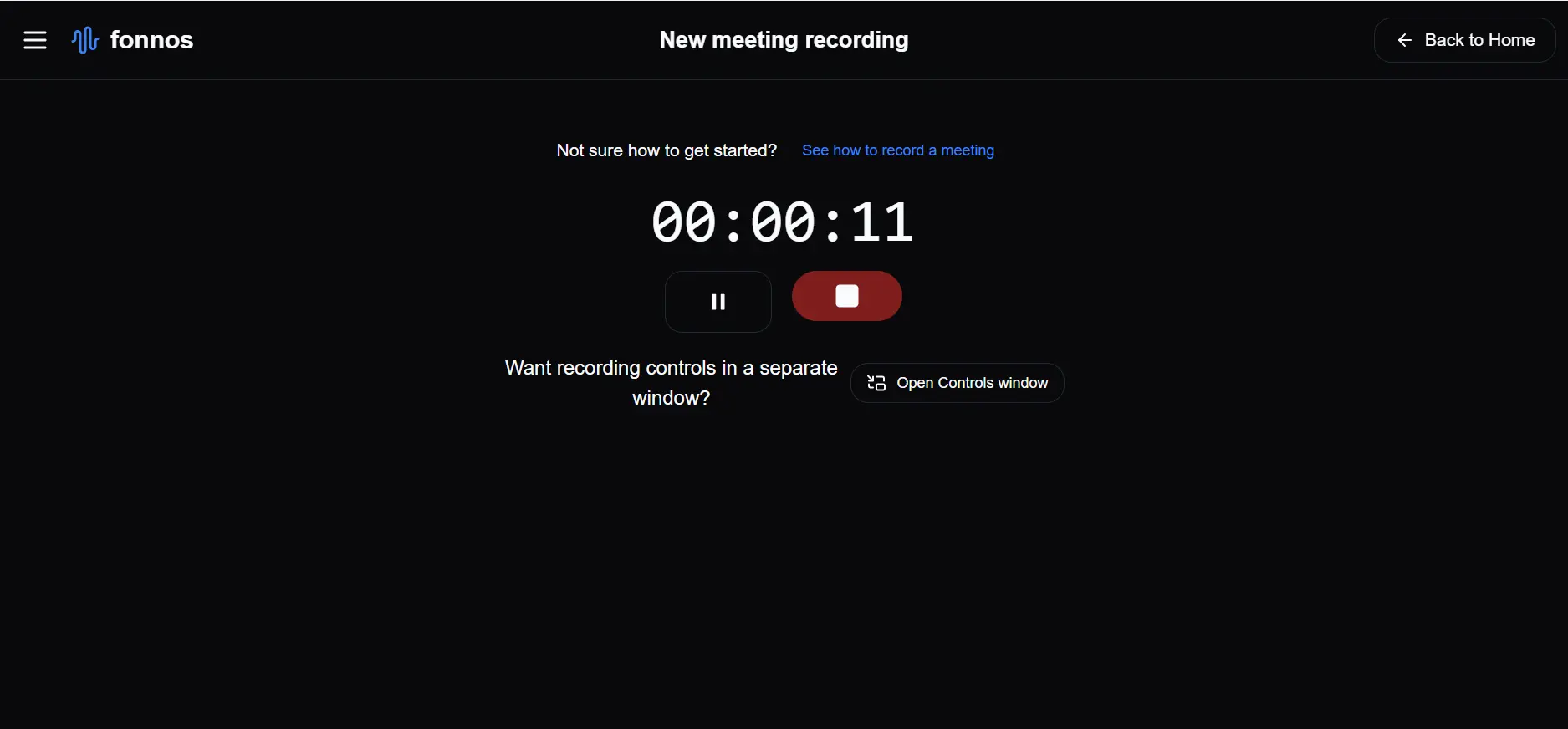
Verify recording is active before you continue.
- Continue with the Slack call.
Carry on with your meeting, confident that the recording is proceeding correctly.
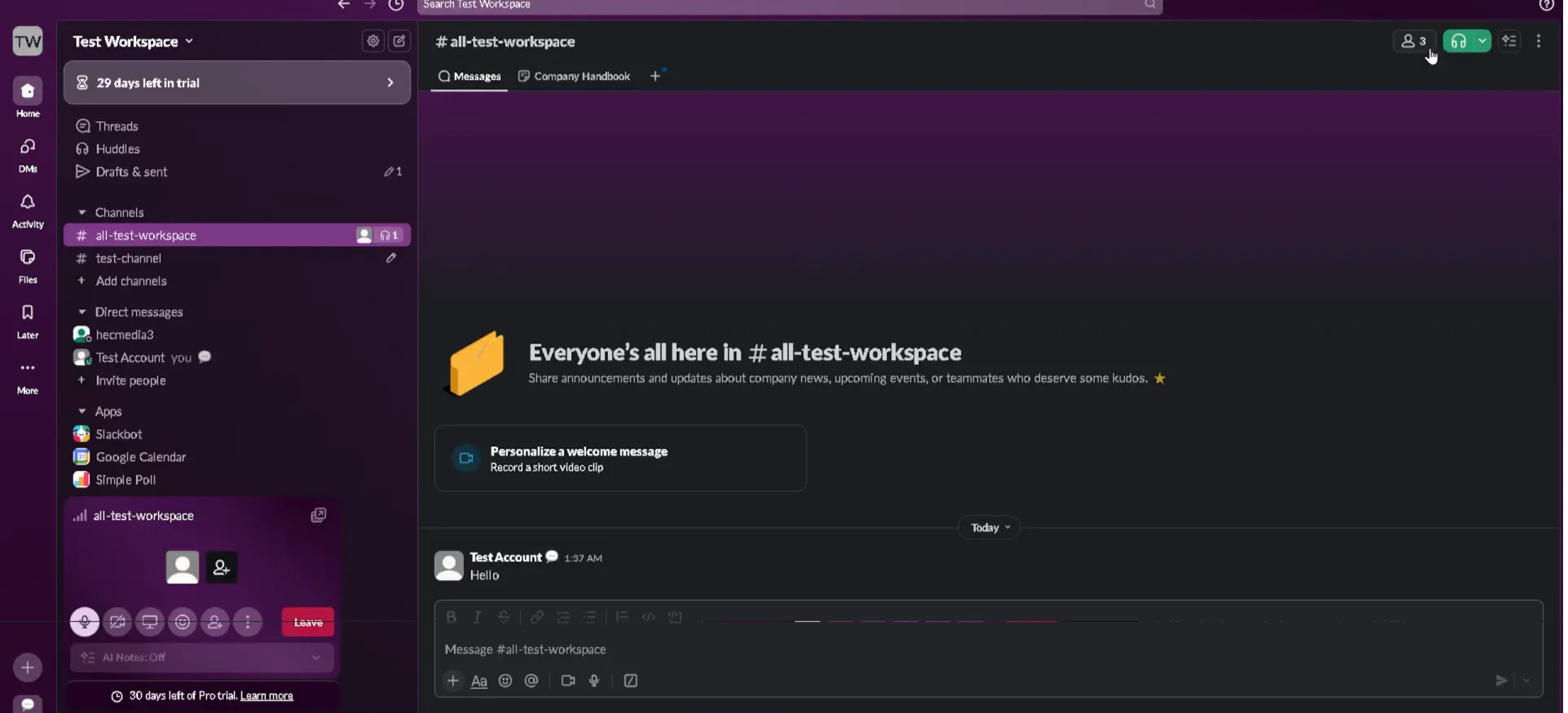
The conversation proceeds while Fonnos captures it in real time.
- Conclude recording.
When your meeting ends, terminate the recording by clicking the 'Stop' button in Fonnos.
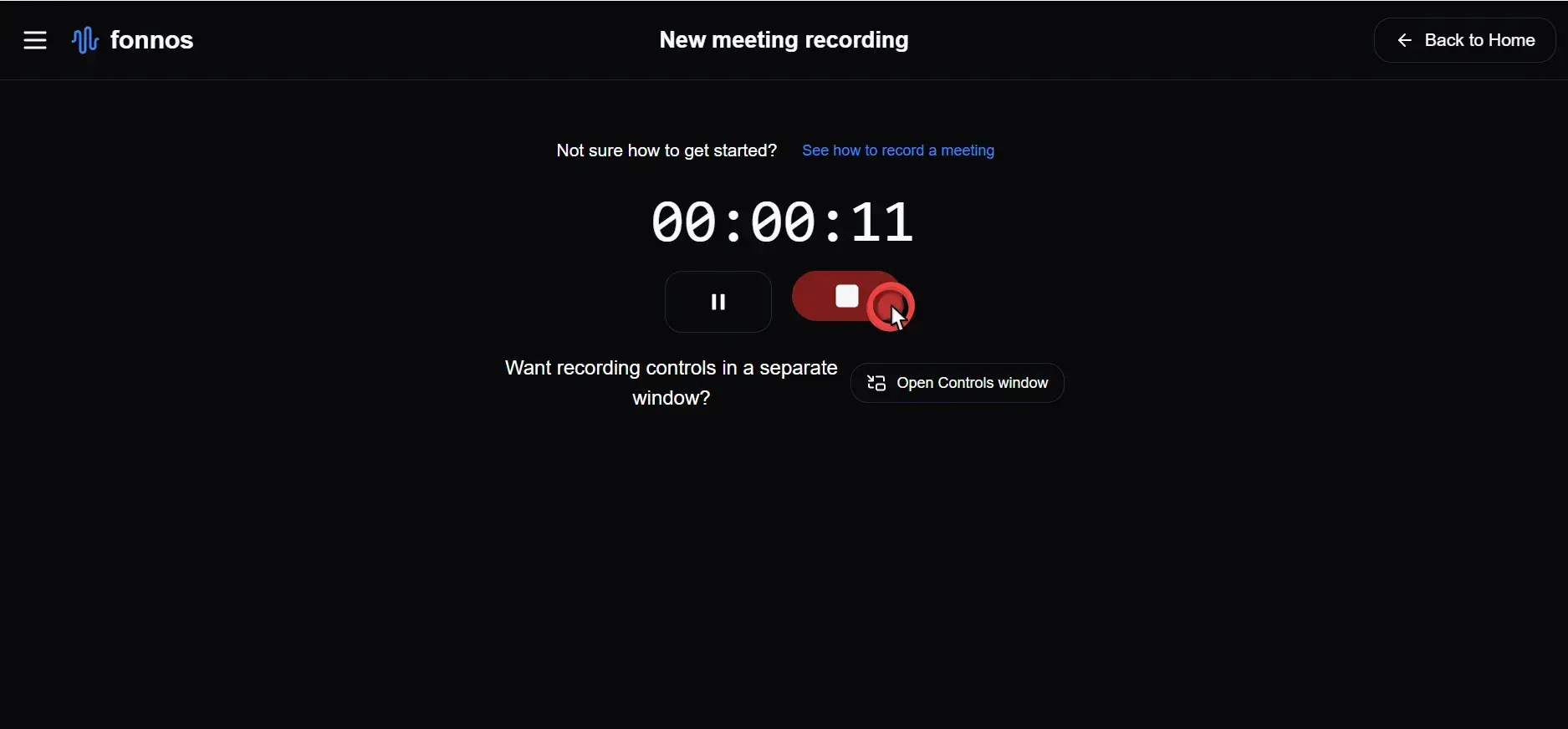
Stop recording once the huddle ends to finalize the file.
- Finalize recording.
After stopping the recording, wait briefly for the file to finish saving and to be securely stored.
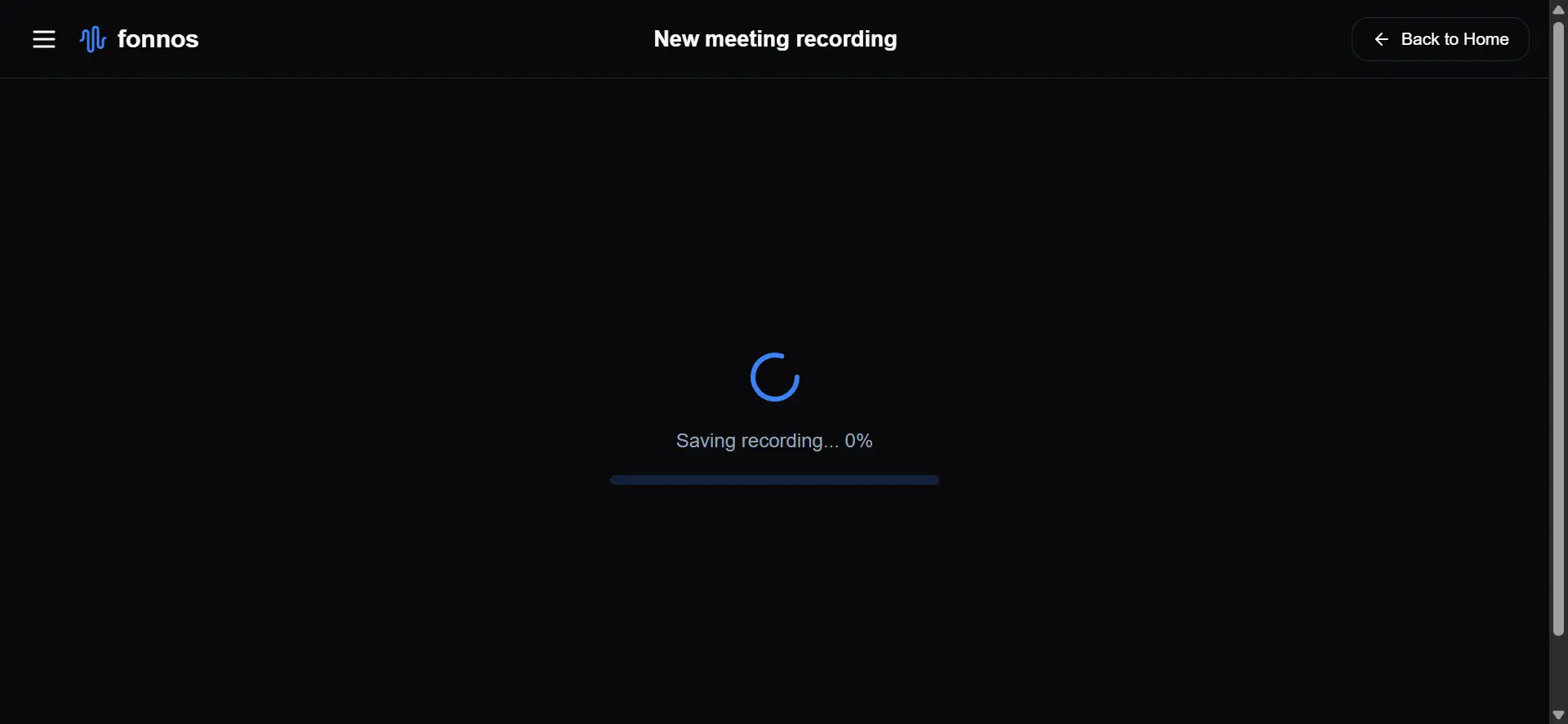
Wait for the upload to complete before closing the session.
- Prepare for a meeting.
You can immediately start a new recording session in Fonnos if needed after the current recording is saved.
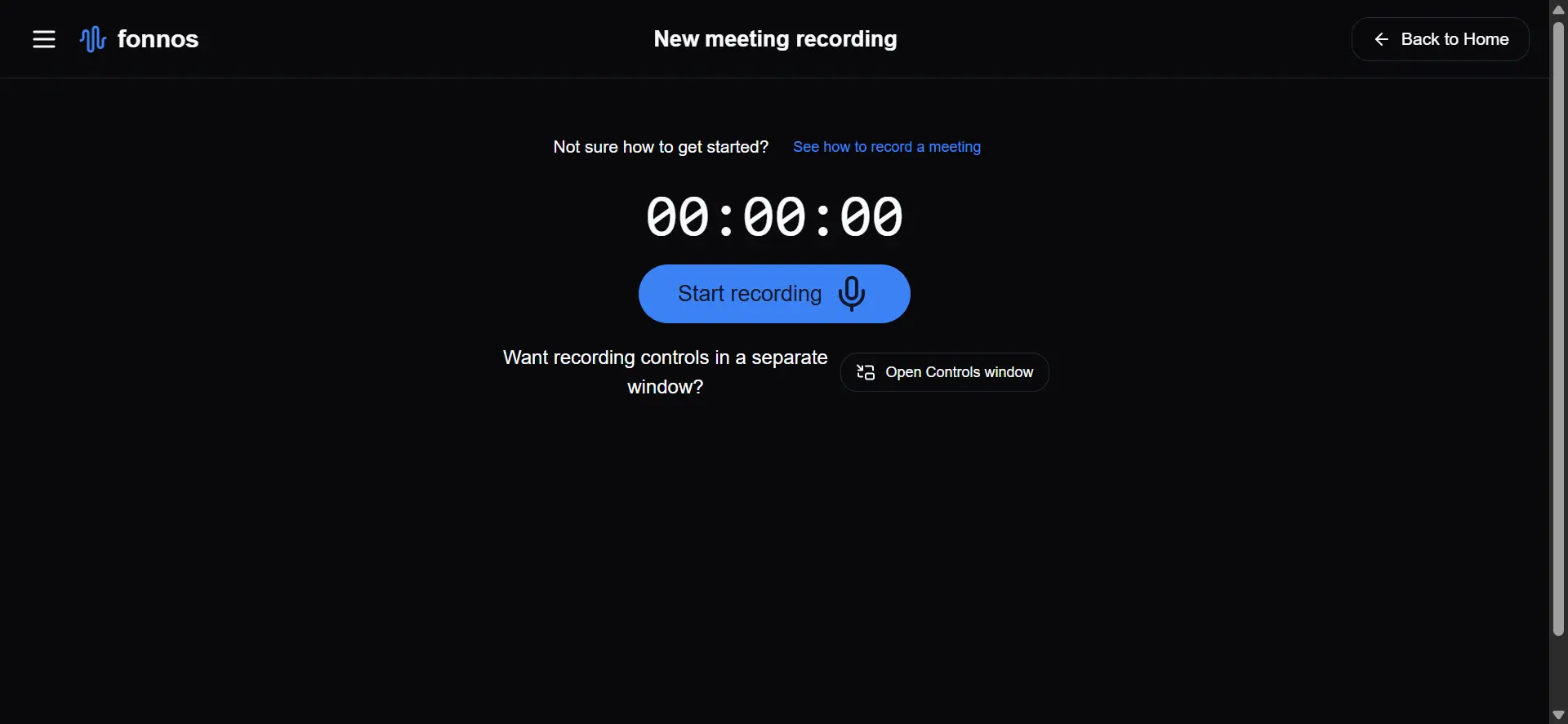
You can start another session right away if needed.
Make Your Recordings Searchable
Recording the meeting is just the first step. The real value comes from what you can do with that data afterward. Here is how modern tools transform a static video file into a productivity asset.
Read Instead of Rewatch
Instead of sitting through a 60-minute replay, you can scan an accurate transcript. Identify participants, key topics, and pivotal moments in seconds.
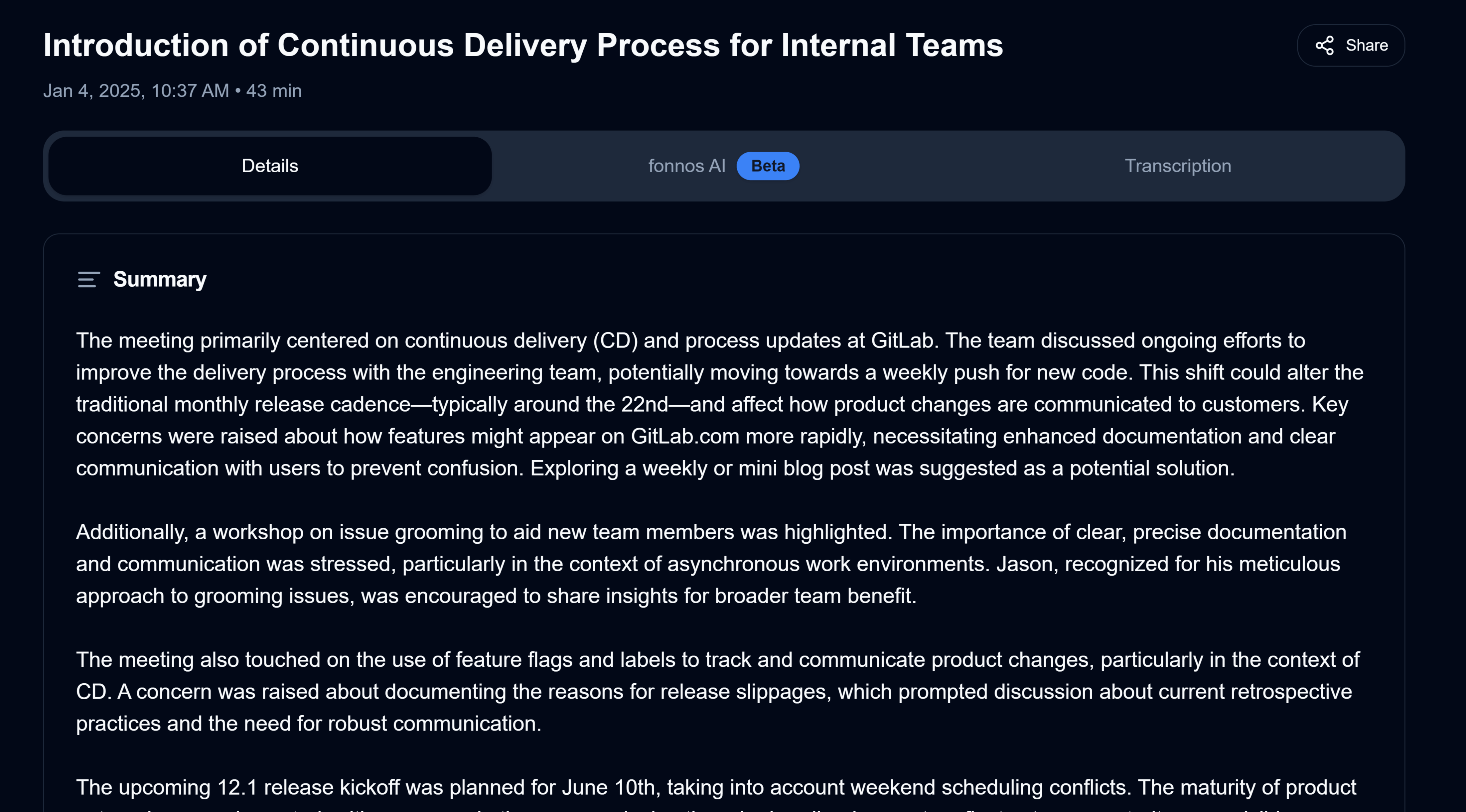
Scan summaries to find decisions without replaying the full call.
Never Miss an Action Item
Smart tools automatically extract to-do lists and deadlines from your conversation. This ensures accountability without the need for manual note-taking during the call.
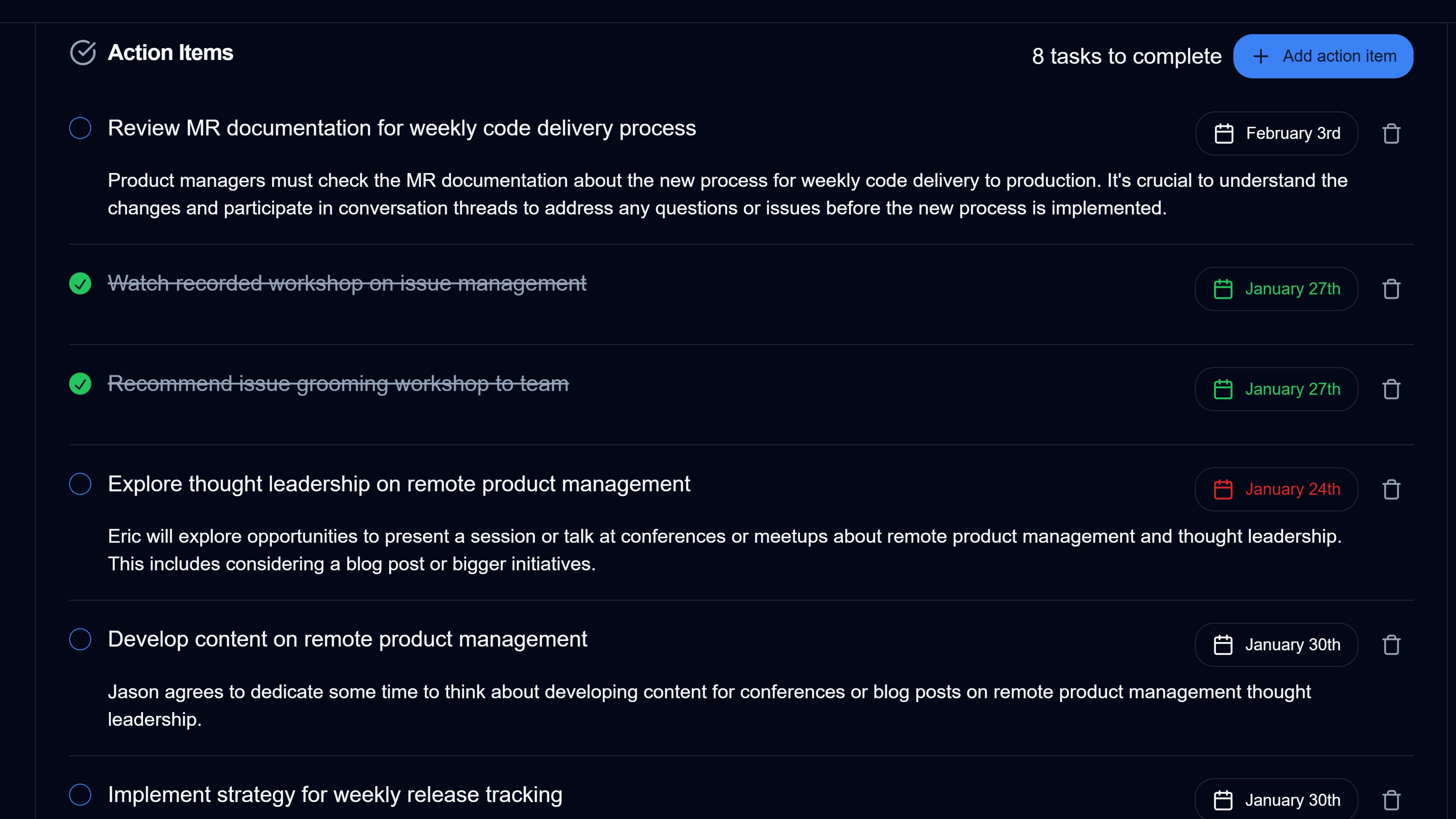
Action items stay attached to the meeting context.
Ask Your Meeting Questions
Need to recall a specific detail? Use a conversational AI assistant to ask questions like:
- "When is the project deadline?"
- "What did the client say about the new design?"
The system pinpoints the exact answer and timestamp, saving you hours of searching.
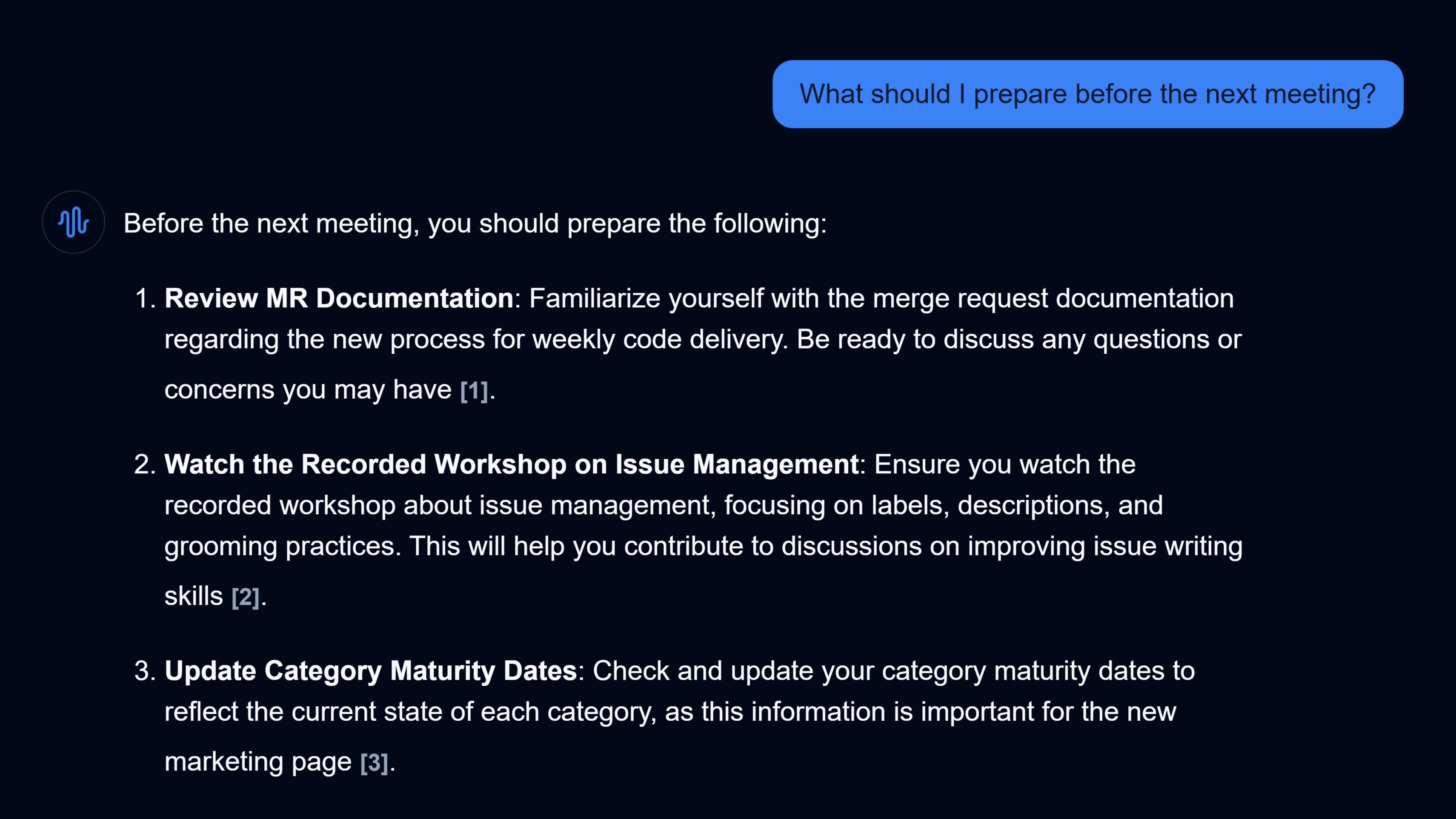
Ask natural-language questions and jump to the exact moment.
For broader workflows, explore meeting note use cases to see how teams apply transcripts and summaries day-to-day.
Real-World Use Cases
Enhanced recording capabilities are particularly useful in these scenarios:
Client Meetings
Track client feedback and requirements precisely. Use the transcript to verify agreements and ensure nothing is lost in translation.
Team Collaborations
Internal brainstorming sessions often move fast. Capture every idea and allow team members to engage fully instead of writing notes.
Training Sessions
Build a library of training resources. New hires can watch past sessions or read summaries to get up to speed quickly.
Privacy & Consent
Slack doesn't announce third-party recording for you, so make consent explicit:
- Notify Everyone: Tell the Huddle you are recording.
- Check Laws: Some regions require two-party consent.
- Be Transparent: Share the Fonnos summary with the team afterward.
FAQ: Recording Slack Calls
Conclusion
Slack's native tools are designed for quick, async clips?not for documenting important meetings.
To keep a reliable record of your Slack Huddles, use Fonnos. It removes the time limits and gives you the professional transcripts and summaries your team needs.